How to enabled choco in windows 10
I am a dedicated and skilled Software Engineer specializing in mobile app development, backend systems, and creating secure APIs. With extensive experience in both SQL and NoSQL databases, I have a proven track record of delivering robust and scalable solutions.
Key Expertise:
Mobile App Development: I make high-quality apps for Android and iOS, ensuring they are easy to use and work well.
Backend Development: Skilled in designing and implementing backend systems using various frameworks and languages to support web and mobile applications.
Secure API Creation: Expertise in creating secure APIs, ensuring data integrity and protection across platforms.
Database Management: Experienced with SQL databases such as MySQL, and NoSQL databases like Firebase, managing data effectively and efficiently.
Technical Skills: Programming Languages: Java, Dart, Python, JavaScript, Kotlin, PHP
Frameworks: Angular, CodeIgniter, Flutter, Flask, Django
Database Systems: MySQL, Firebase
Cloud Platforms: AWS, Google Cloud Console
I love learning new things and taking on new challenges. I am always eager to work on projects that make a difference.
To enable and install Chocolatey (Choco) on Windows, follow these steps:
1. Open PowerShell as Administrator:
- Press the Windows Key, type PowerShell, right-click on Windows PowerShell, and select Run as administrator.
2. Run the installation command:
Copy and paste the following command into the PowerShell window, then press Enter:
Set-ExecutionPolicy Bypass -Scope Process -Force; [System.Net.ServicePointManager]::SecurityProtocol = [System.Net.ServicePointManager]::SecurityProtocol -bor 3072; iex ((New-Object System.Net.WebClient).DownloadString('https://community.chocolatey.org/install.ps1'))
3. Wait for the installation:
The script will download and install Chocolatey on your system. It might take a few moments.
4. Verify the installation:
Once installed, verify that Chocolatey is working by typing the following command in PowerShell:
choco -v
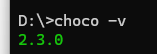
This should display the version of Chocolatey if the installation was successful.
Now, Chocolatey is enabled, and you can use it to install packages on your Windows system.