How to use Git and GitHub in Linux on Red Hat systems
Compatible with Fedora, CentOS, and Amazon Linux on Red Hat systems

I am a dedicated and skilled Software Engineer specializing in mobile app development, backend systems, and creating secure APIs. With extensive experience in both SQL and NoSQL databases, I have a proven track record of delivering robust and scalable solutions.
Key Expertise:
Mobile App Development: I make high-quality apps for Android and iOS, ensuring they are easy to use and work well.
Backend Development: Skilled in designing and implementing backend systems using various frameworks and languages to support web and mobile applications.
Secure API Creation: Expertise in creating secure APIs, ensuring data integrity and protection across platforms.
Database Management: Experienced with SQL databases such as MySQL, and NoSQL databases like Firebase, managing data effectively and efficiently.
Technical Skills: Programming Languages: Java, Dart, Python, JavaScript, Kotlin, PHP
Frameworks: Angular, CodeIgniter, Flutter, Flask, Django
Database Systems: MySQL, Firebase
Cloud Platforms: AWS, Google Cloud Console
I love learning new things and taking on new challenges. I am always eager to work on projects that make a difference.
1. Install Git (if not already installed)
First, install Git on your Linux system using the following command (Ubuntu/Debian):
sudo yum update
sudo yum install git
Please see this as a reference
https://software-engineer.thirdygayares.com/package-manager-in-linux
Configure Git
Before using Git, set your name and email:
git config --global user.name "Thirdy Gayares"
git config --global user.email "[email protected]"

Create a Repository
You can create a new Git repository (repo) in your project directory.
Create a Directory
mkdir myRepository
Navigate to your project folder:
cd myRepository
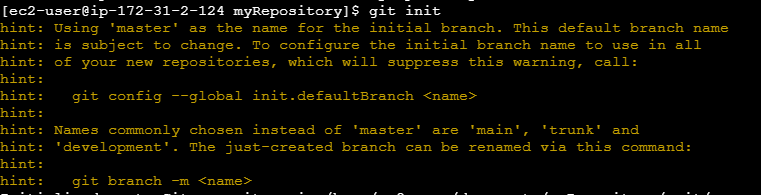
Initialize the Git repository:
git init
Create File
How to create a file in Linux? https://software-engineer.thirdygayares.com/linux-basic-commands#heading-create-a-file

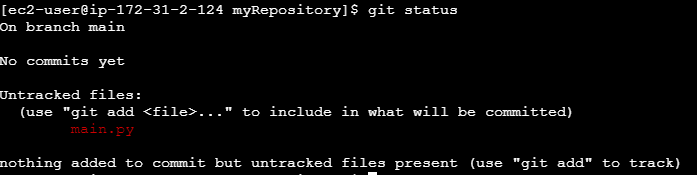
Git Status
This will show you the changes in your working directory, such as new files or modified files.
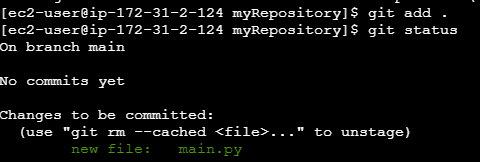
Add Files to Staging Area
git add .
Commit Changes
Once the files are staged, you can commit them. A commit is like saving a snapshot of your project at that point.
git commit -m "Initial commit with project files"

Check Commit History
You can see your commit history with:
git log
Set Up Github Repository
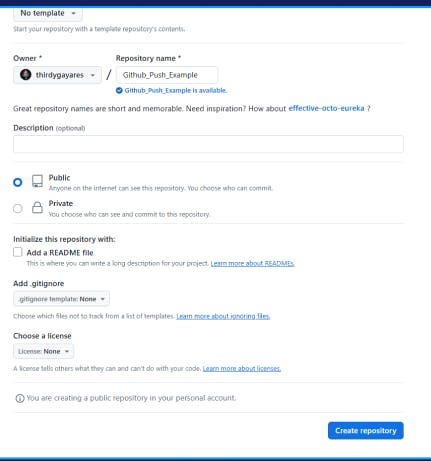
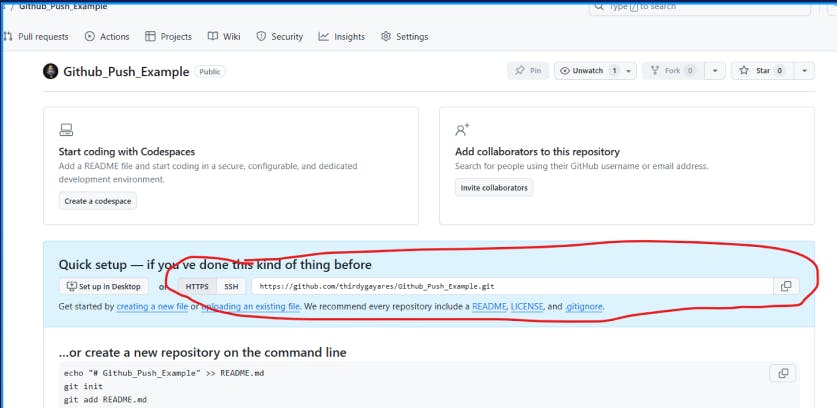
Push to a Remote Repository
You can push your changes.
Add a remote repository:
git remote add origin https://github.com/Thirdy-Lecture/Github_Push_Example_2.git
Push changes to the remote repository:
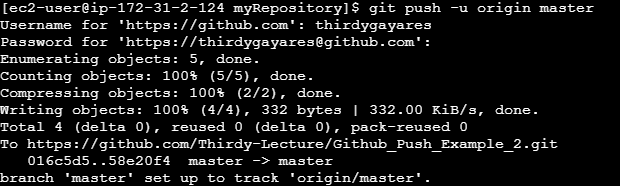
git push -u origin master

How to resolve this issue ?
Go to https://github.com/settings/tokens
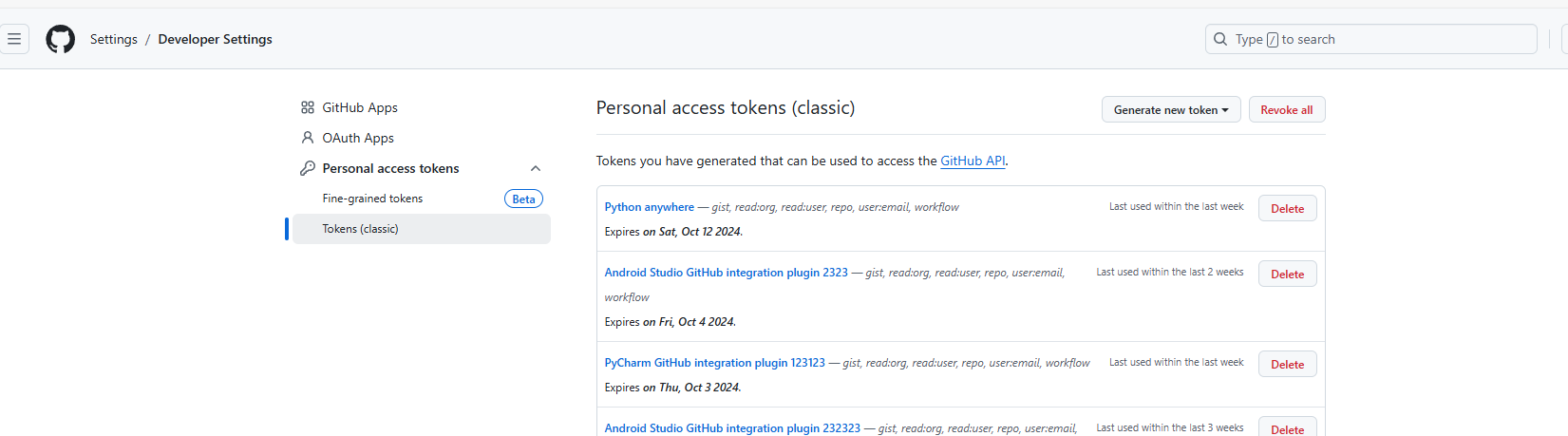
Choose classic
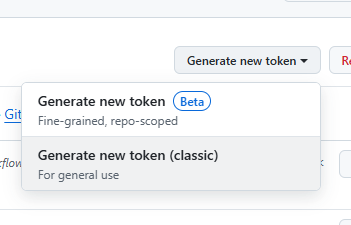
Check The Repo and Set note and Expiration then click generate token
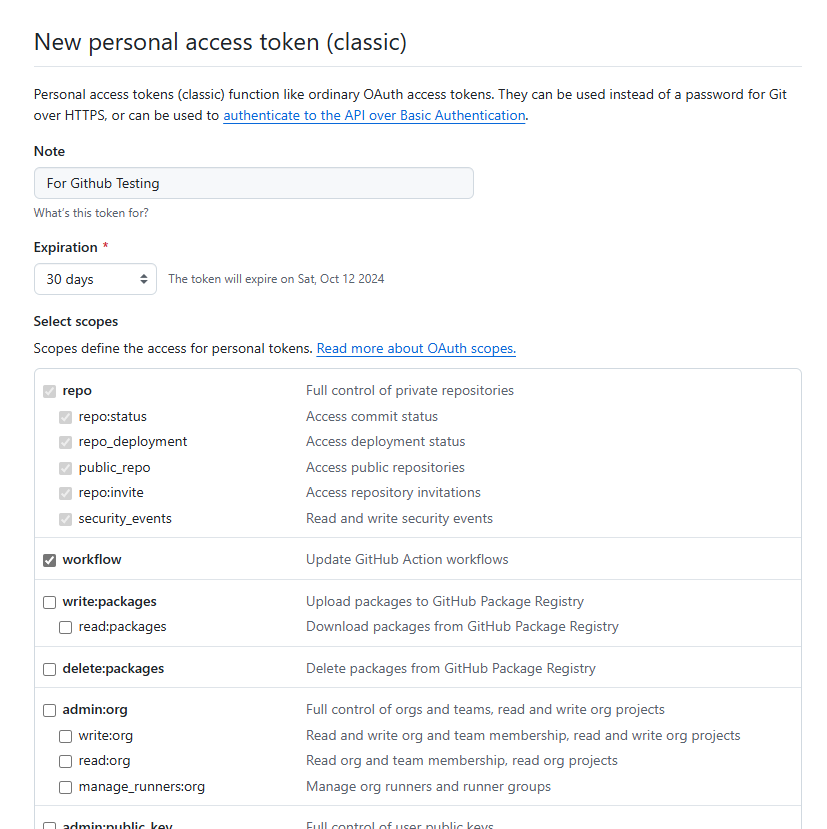
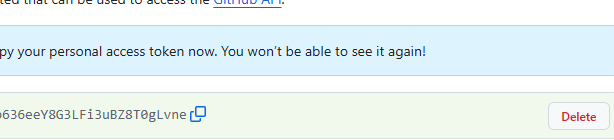
Copy and paste the token key
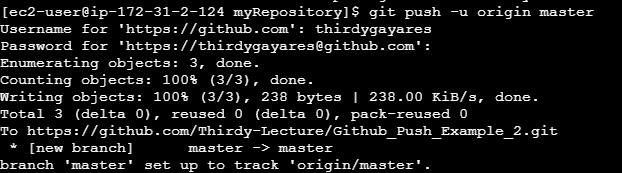
git push -u origin master
Username for 'https://github.com': thirdgyayares
Password for 'https://[email protected]': <Paste your Personal Access Token here>
Set up Credential Caching
If you don’t want to enter your token every time, you can cache your credentials using:
git config --global credential.helper cache
This will save your credentials for a while.
Alternatively, you can permanently store your credentials by using:
git config --global credential.helper store
This way, Git will store the credentials in a file, and you won’t be prompted for them again.
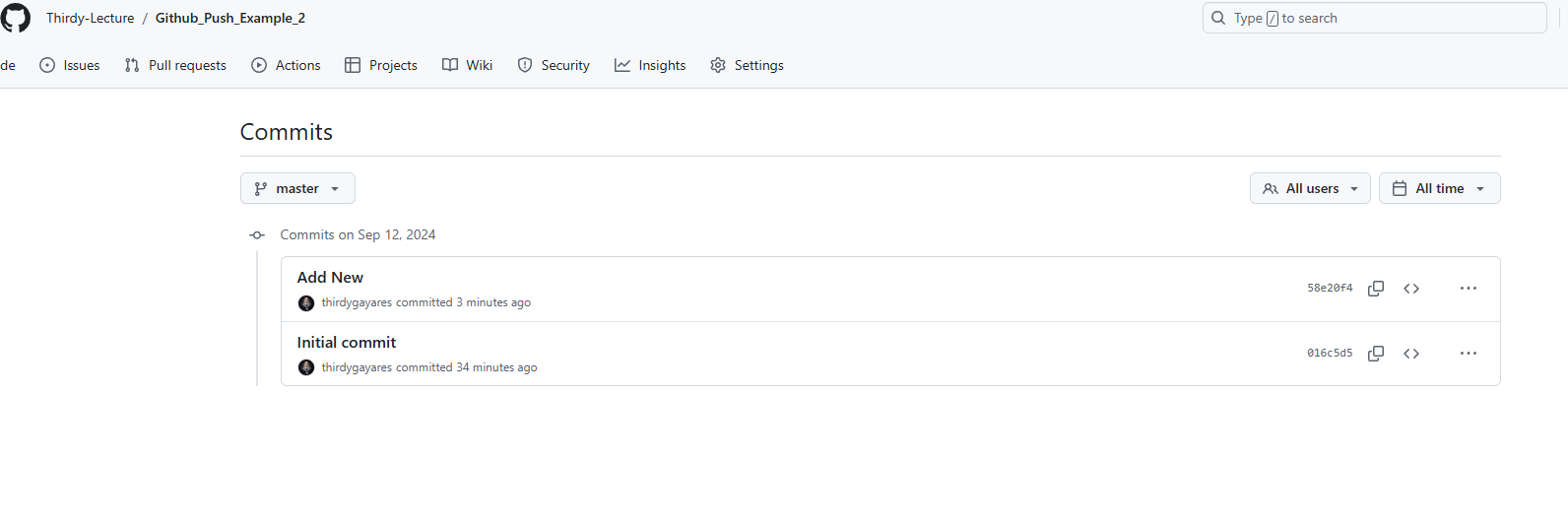
Check the repository on your Github
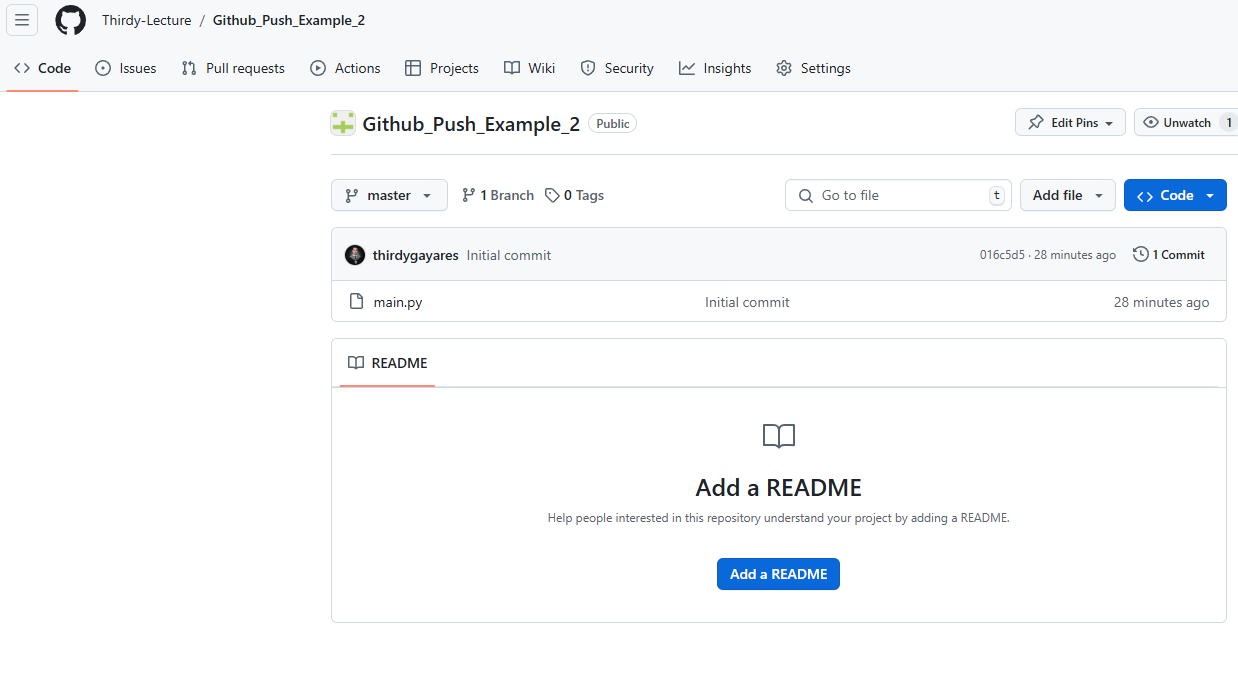
I try to commit and push again
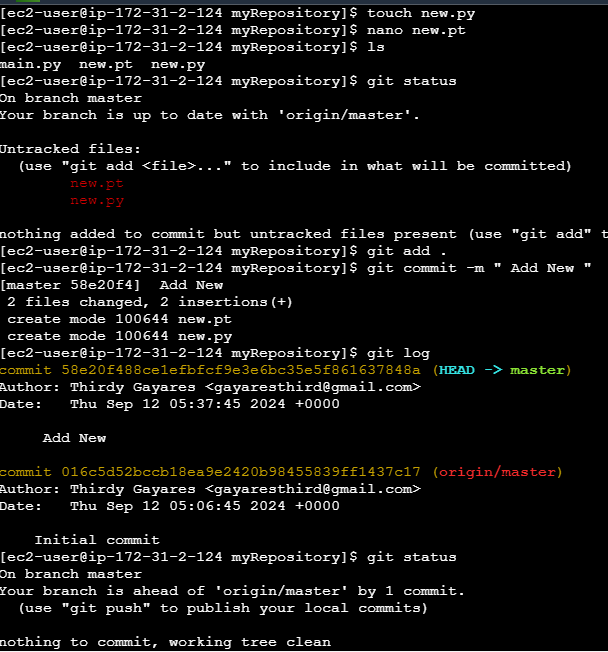
When I refresh my repository on github
Pull Changes from Remote
To pull updates from a remote repository:
git pull origin master